Fyrox 1.0.0
I'm happy to announce that after 7 years in development the first stable Fyrox 1.0.0 was released! Fyrox is a modern game engine written in Rust, it helps you to create 2D and 3D games with low effort using native editor; it is like Unity, but in Rust. This release is huge compared to the last one (0.36). Make sure to check release notes for release-candidate versions as well as the release notes on this page.
This release took a lot of effort, a lot of polishing and attention to details. Yet, the development team of the engine is quite small with little to no funding, so it is impossible to catch all the bugs and polish all the "rough" parts. If you find a bug, confusing or incomplete documentation, please file an issue (opens new window) or propose a solution by creating a pull request (opens new window). Your feedback is very valuable to improve the engine, make it more stable and easy to use.
# Release-Candidate Release Notes
Make sure to also check release notes for the two release-candidates for 1.0.0, which essentially summarizes all the changes in 1.0.0 compared to 0.36.2.
# Installation
Use the link (opens new window) to download page to learn how to install this release.
# Project Export CLI
It is now possible to configure continuous integration/continuous delivery (CI/CD) for games made with Fyrox. Each
project built using the project manager has a special crate called export-cli. This crate offers a command line
interface (CLI) for the same functionality that the editor uses when you export the game from it.
This functionality is very important for team development where a project is developed by many developers of various roles. For example, even on small teams CI/CD with this CLI will automate builds for QA.
# Options
There are number of useful options that can be used to simplify testing of the produced builds.
-h,--help- show the detailed usage instructions for the CLI.-V,--version- prints version of the CLI.--target_platform <pc/wasm/android>- the target platform to build the game to. Must be one of:pc, android, wasm. Keep in mind, that you must also set the appropriatebuild_targetparameter if you're using cross compilation (for example, creating a WebAssembly or Android build from PC). Default value ispc.--build_target <target triple>- the name of the build target. Thedefaultvalue forces to compile the game to the default target of the current toolchain. Usually this parameter can be left unchanged, unless you need cross-compilation to some specific platform and architecture (see below). WebAssembly builds requires this parameter to bewasm32-unknown-unknown. Android builds require one of the following:armv7-linux-androideabifor 32-bit andaarch64-linux-androidfor 64-bit. The full list of build targets can be found here (opens new window). Default value isdefault.--destination_folder <path>- the destination folder for the build. Default value is./build/.--include_used_assets- a flag, that defines whether the project exporter should include only used assets in the final build or not. If specified, then this flag essentially forces the exporter to scan all the assets for cross-links and if there's at least one usage then such asset will be included in the final build. This option could be useful if your project has a lot of "dangling" resources, and you don't want to search all the used resources yourself. Use this option carefully, because it won't include assets that you manually load from code bypassing the resource manager. In this case, the project manager will simply ignore such "unknown" files. This option is disabled by default, because it may produce unwanted side effects in some projects.--ignored_extensions <ext1,ext2,..,extN>- specifies a set of file extensions that should be ignored. Each extension must be separated by a comma. For example:log,txt,iml. Default value islog, which excludes Fyrox log file.-r,--run_after_build- if specified, the exporter will try to run the exported project after the successful build. This option is disabled by default.-o,--open_destination_folder- if specified, the exporter will try to open the build folder in the default file manager of your OS after the successful build. This option is disabled by default.-c,--convert_assets- if specified, the exporter will try to convert all supported assets to their "shipping" version. For example, native game scenes and UIs will be converted from ASCII to binary if this option is specified. This option is enabled by default.-e,--enable_optimization- if specified, enables all possible optimizations for the build. This option is enabled by default.
# Examples
The typical usage varies on the target platform. Keep in mind that you can also add all the arguments listed above for the commands below.
# PC
When building for Windows/Linux/macOS on the same OS (Windows → Windows, etc.) then all you need is to run the tool with default arguments:
Cross-compilation requires build target to be specified, for example if you're making Linux build from Windows you can do something like this:
# WebAssembly
WebAssembly builds usually performed on Windows/Linux/macOS machine so it essentially requires cross-compilation and a typical command to build the game can be something like this:
Keep in mind that WebAssembly builds were tested only on wasm32-unknown-unknown build target.
# Android
Android builds usually performed on Windows/Linux/macOS machine so it essentially requires cross-compilation and a typical command to build the game can be something like this for 64-bit version:
32-bit version requires different build target:
# Text Trimming
It is now possible to add optional text trimming with ellipsis when a line does not fit in its constraint. On practice, it looks like this:
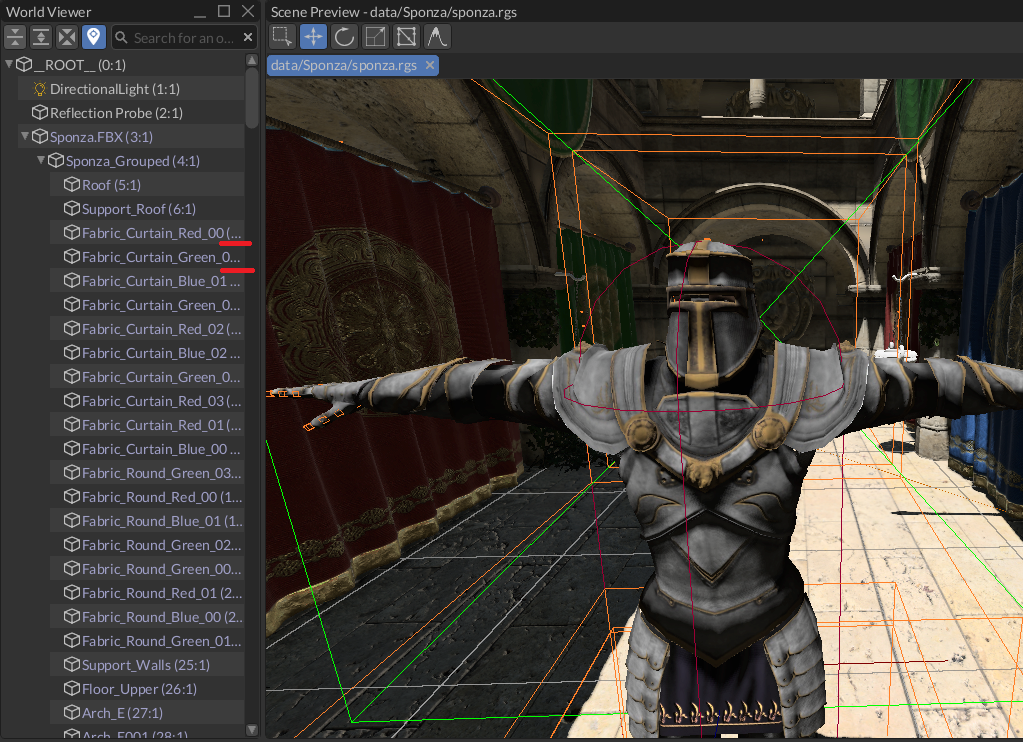
This is small improvement, but it really makes the UI more elegant.
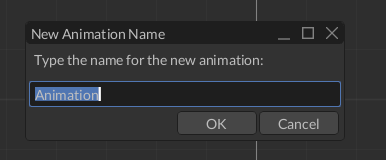
Input box is a new widget that solves the most common problem in UI - ask a user to enter some text and either confirm the input or cancel it.
# Exit confirmation dialog for project manager
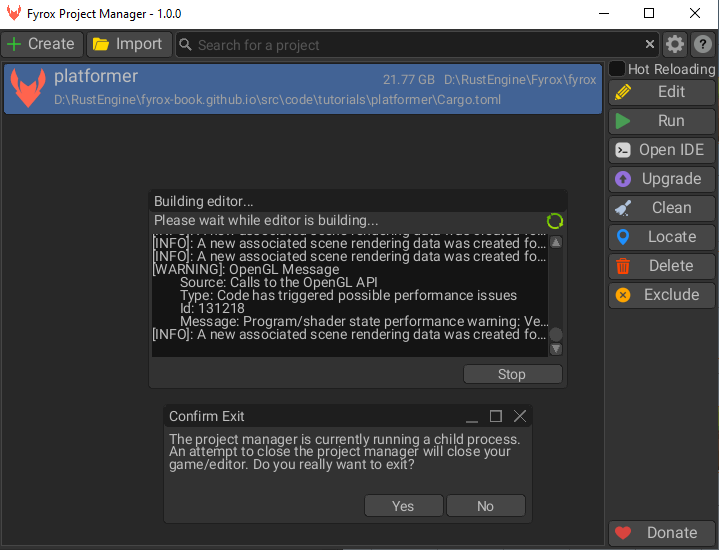
Project manager is able to build and run or edit your game, this is achieved by creating child processes that are attached to the project manager process. Some operating systems (such as Windows), explicitly controls the lifetime of child processes. For example on Windows, child processes are terminated automatically when the parent process is terminated. This fact added confusing behavior for the project manager - when the editor was run from the project manager and you're closing the project manager, the editor will be closed too without a warning. This inconvenience was fixed in this release by adding confirmation dialog when closing the project manager.
# Text Box

Text box now has a configurable corner radius property. This is small but important change for consistent look of the editor.
# Animation Editor
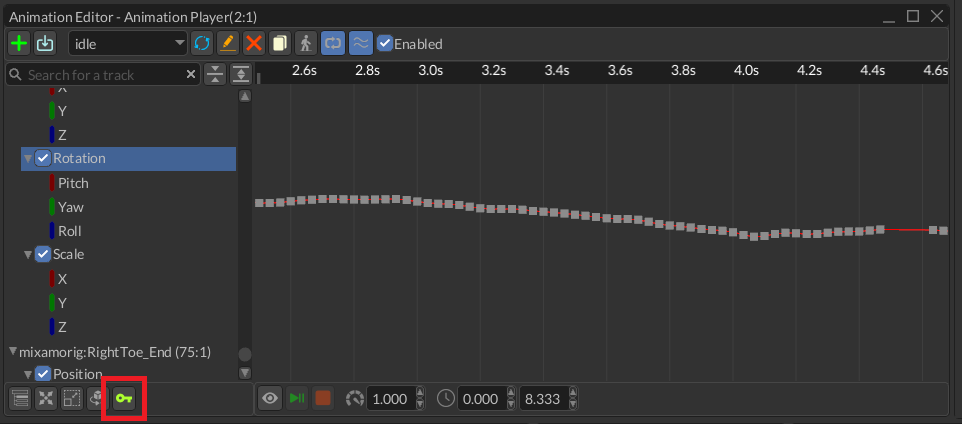
It is now possible to capture the state of all animated properties in the animation editor. It is very useful when you're creating an animation that should capture your actions made in the editor. To do that, make a change to a scene node's property that is currently being animated and click on the green key button. Then move the time cursor and repeat these actions again. After that you can preview the result by clicking on the button with eye icon.
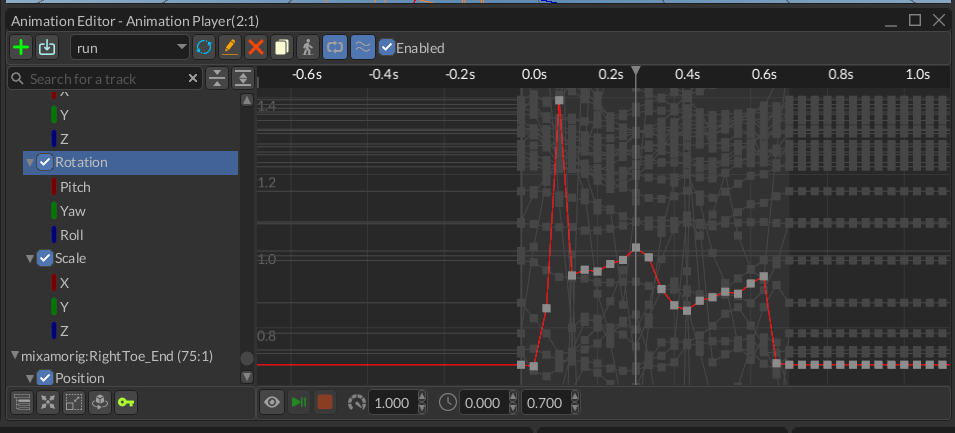
It is also possible now to disable drawing of background curves in the animation editor:
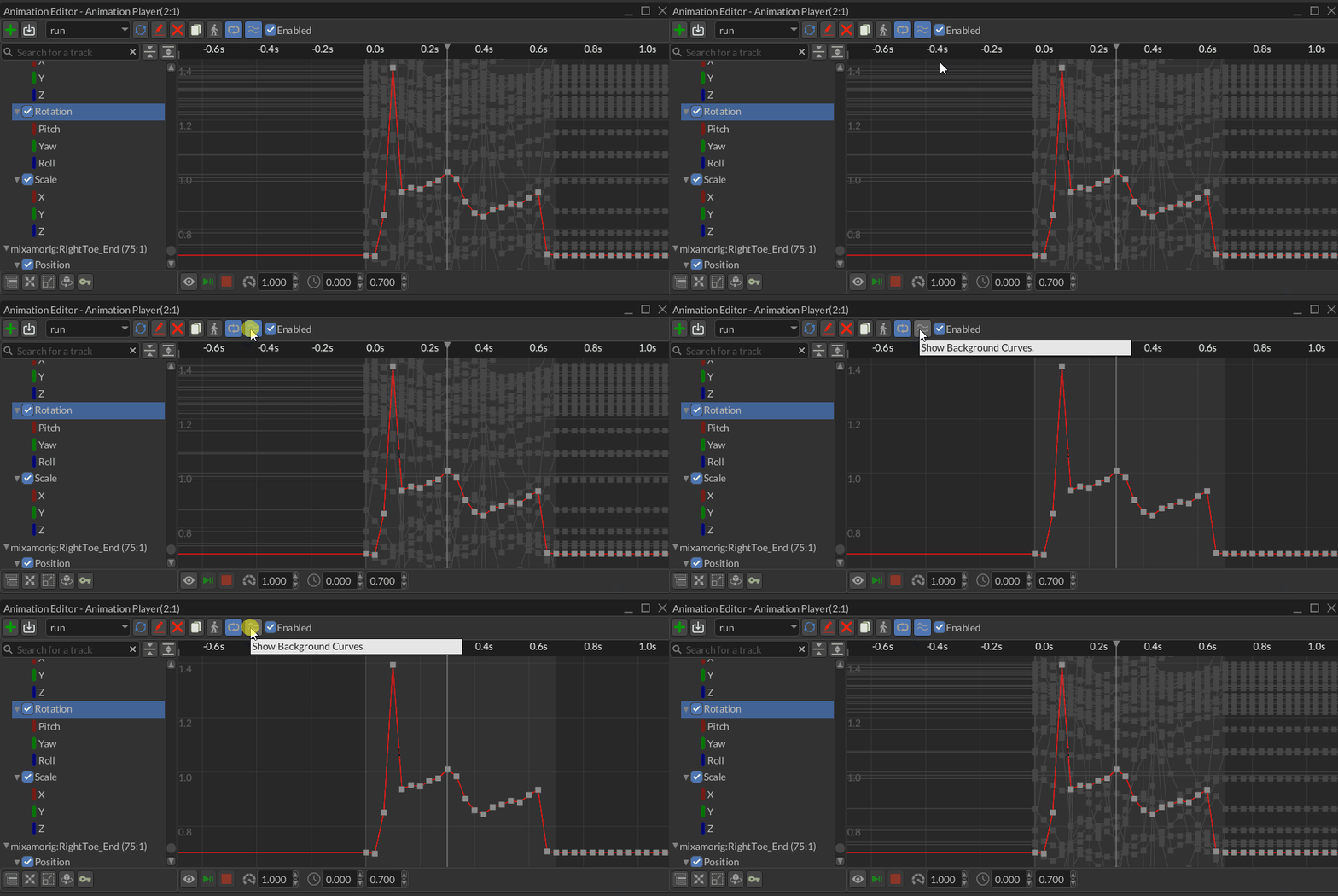
Background curves are used to visualize values of other animated parameters, but showing them all at once in some cases creates quite noticeable visual clutter and now it can be removed in a single click.
# ABSM Editor
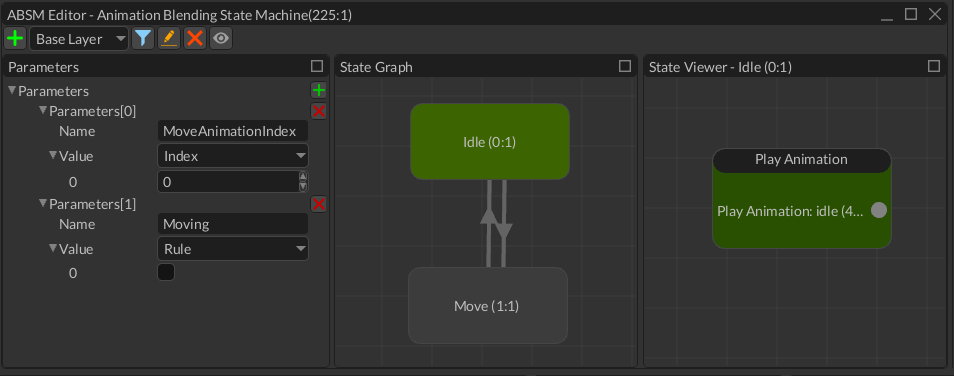
Animation blending state machine editor was improved as well, it is not only the visual style improvements. Adding a new animation or renaming one is now performed via new input box control. This is much more intuitive than the old approach.
# Scene Loading
Scene and UI loading was refactored to be more flexible, AsyncSceneLoader was removed and now scene loading is performed
via async tasks. There are three new helper methods in PluginContext: load_scene, load_ui, load_scene_or_ui.
The easiest way to load a scene or UI (and the most compact one) is just one line:
This method is used by default in all new projects generated by the project manager. This method automatically adds the loaded scene or UI to the engine internals.
In some cases you may want more control of how the scene is processed before adding it to the engine. A typical example of scene loading with full control of the process is something like this now:
It is quite verbose, but it is only needed if you need to do something special during scene loading.
# Book
The book (opens new window) was updated for 1.0.0, it now has all screenshots up-to-date, pretty much every chapter is finished.
# What's Next?
The release of 1.0.0 was very labor-intensive and Fyrox Dev Team needs some rest. The devs will continue fixing bugs, but new major features will be on-hold for a few months.
# Support
If you want to support the development of the project, click this link (opens new window). Also, you can help by fixing one of the "good first issues" (opens new window), adding a desired feature to the engine, or making a contribution to the book (opens new window)
# Full List of Changes
The list is split into four sections for ease of reading and finding particular information.
# Fixed
- Reduced vram consumption by replacing rgba16f with rgb10a2 textures
- Fixed crash when switching scenes after selecting an audio bus
- Fixed incorrect shape editing for cuboid shapes
- Fixed debug rendering in 2d
- Do not offset a collider when changing its size via shape editing
- Fixed position reset when moving multiple objects at once
- Fixed crash when attempting to bring a destroyed widget into view
- Fixed terrain multilayer rendering
- Fixed prefab hot reloading
- Fixed heightfield collider not working (fix for rapier3d regression)
- Fixed view jumping when selecting large tree view items in world viewer
- Fixed incorrect id for default animation tracks data container
- Fixed crash when undoing asset instantiation
- Fixed root field name
- Fixed inability to delete text in text box in some cases
- Fixed camera preview being cutoff from the bottom
- Fixed inability to copy built-in resources without a data source
- Fixed height for search bar in property selector
- Correctly leave preview mode when closing absm editor
- Correctly leave preview mode when closing animation editor
- Fixed asset selector style
- Fixed text trimming in check box
- Fixed warning from material field
- Fixed tab control style
- Fixed layout for bit field
- Fixed text alignment for infinite constraints
- Fixed incorrect descender calculation in case of infinite constraints
- Fixed checkbox style
- Fixed crash when loading a prefab with hierarchy modified in the base
- Fixed infinite message loop in quat property editor
- Fixed absm editor not working properly for game scenes
- Fix naming for inspector actions
- Fix naming some more
- Fixed
already borrowedpanic - Fixed absm buttons
- Fixed bitfield style
- Fixed curve editor coordinate space
- Fixed incorrect behavior of
open recent scene - Fixed incorrect project name for
export-cli - Fixed incorrect resource path fetching in material field editor
- Fixed style for
addandremovebuttons for collections - Include
coremodule infyroxdocs - Fix for macos fast scroll when pixel delta is received (#898)
- Style fixes for material editor
- Fixed resource registry not loading in time on wasm
- Prevent crash when moving a scene node
# Added
- CLI for project export
- Ability to trim text with ellipsis
- Input box widget
- Tooltip with track property name
UserInterface::try_send_responsehelper- Ability to disable background curves in the animation editor
- Ability to disable background curves for curve editor widget
- Add built-in light style resource
- Add exit confimation dialog for project manager
- Added
donatebutton for project manager - Added colors for scene item icons
- Added missing code for surface data resource saving
- Added more methods for
ImageButtonBuilder - Added shadow for the text in the asset item
BehaviorResultalias + test fixesColor::hexImageButtonBuilderhelper + replacedmake_button_xxxPluginContext::load_scene_or_ui+ fixed project templatedispatch_behavior_variantsmacrolocatebutton for material fieldlocatebutton for surface fieldmake_image_toggle_with_tooltiphelper- Corner radius for text box
- Property editor for triangle buffer
- Property editor for vertex buffer
- Ability to add keys for any numeric properties in the animation editor
- Ability to add keys for selected nodes in the animation editor
- Ability to minimize all editor panels
- Ability to search for a loader for specific resource data type
# Changed
- Increased kernel size of pcs filtered shadows (makes shadows much smoother)
- Watch only registry root for changes
- Absm editor improvements
- Migrate to rapier 0.32
- Do not echo sync-only messages
- Improved validation for rigid bodies
- Increase ambient lighting for asset preview
- Update libloading dep
- Do not try to use hole mask if
holes enabledflag is off - Print info messages in automated tests only if
visual_debug == true - Prevent message spam when executing editor tests
- Do not reset camera state when doing any changes on it
- Wrap asset title by word, not by letter
- Improved log filtering in the editor
- Improved numericupdown widget style
- Improved style for docking anchor
- Improved surface data editor style
- Improved visual style for signals in animation editor
- Improvements for animation editor
- Improvements for audio preview panel
- Moved build targets list to editor settings
- Moved project build tools to
fyrox-build-toolscrate - Refactor window dragging logic to use local coordinates and clamp size/position (#899)
- Refactored animation renaming + adding new animation
- Refactored export cli to be a part of the game workspace
- Refactored log filtering
- Refactored scene loading to use plugin tasks
- Print current version in the project manager window's title
- Print warning message if backtrace capture is enabled
- Disable info logging by default in project manager
- Disable layer-related buttons when no layer is selected
- Disable word wrap for node type
- Adjust "open docs" button style
- Adjust byte gap
- Adjust default height map size for terrains to prevent warning message
- Automatically enter preview mode when selecting a camera
- Automatically zoom in on the new animation
- Accept
NumpadEnteronButtonwidget - Use bitmap image for check box instead of vector
- Use correct resource for
locatebutton in material field editor - Use correct resource for
locatebutton in surface field editor - Use default style for new ui
- Use image for
locatebutton in resource field editor - Use toggle buttons for preview and loop options in animation editor
- Use ui style when drawing keyboard focused widget bounds
- Show animation player name in the window title
- Show currently selected absm name
- Send message box messages back
- Save triangle buffer as a binary blob
- Unify naming for built-in assets
- Editor style improvements
- The plugin initialization was moved to event queue and only when the registry is fully loaded
- Always show display name of the property if the doc is empty
- Build target for project export options
- Configurable constraint for dropdown list
- Convert project name to standard format
- Correctly handle dyn types on hot reloading
- Correctly mark property editors when loading a dynamic editor plugin
- Deactivate "add key" button if nothing is selected
- Default ui for project manager
- Defaults + docs for project exporter cli
- Diagnostic messages when adding keys
- Do not create a default user interface
- Do not rebuild formatted text when visual transform changed
- Draw keys on background curves
- Helper methods for
HotKey - Keep message flags when responding to changes in ScrollBar widget
- Keep track of an assembly from which a dyn type originates from
- Make keyboard shortcut text for menu item less bright
- More efficient render data copying
- More visual improvements for animation editor
- Offload vertex transform to gpu when drawing widgets
- Prevent highlighting rectangle of a focused widget to draw outside
- Prevent redundant memory allocations during widgets drawing
- Rename default name of the scene root to
SceneRootfrom__ROOT__ - Reorganized log and command stack panel buttons
- Save log filter state to the editor settings
- Shuffle icon for uuid property editor
- Simplified trait bounds for
load_ui - Split animation editor toolbar in a top and bottom parts
- Support
FrameworkErrorinGameError - Unified scene/ui loading + refactored async script/plugin tasks
# Removed
- Remove
Mobilitybecause it does nothing - Removed context menu from texture field, replace with buttons
- Removed redundant tree traversal in widgets drawing
- Removed unused import
- Removed useless message when saving settings